XiaoZhi AI Configuration Guide
Instructions
ICRobot Xiaozhi AI mode, two steps are required before use.
Step 1. Switch the ICRobot internal firmware to Xiaozhi AI, the method can refer to the firmware switching.
Step 2. Connect ICRobot to configure the network operation, details can refer to the contents of this document.
Connect & Configure Wi-Fi
Wi-Fi Setup
|
|
|---|---|
On your mobile device, go to Settings > Wi-Fi. |
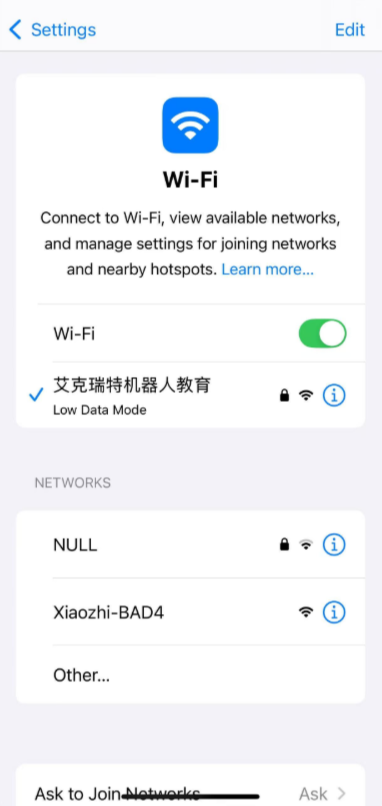
Select the network XiaoZhi-XXXX, where XXXX represents the last 4 digits of the MAC address. |
|
|
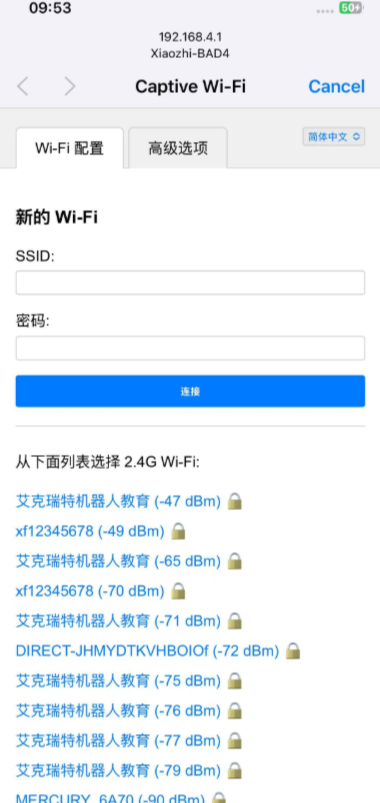
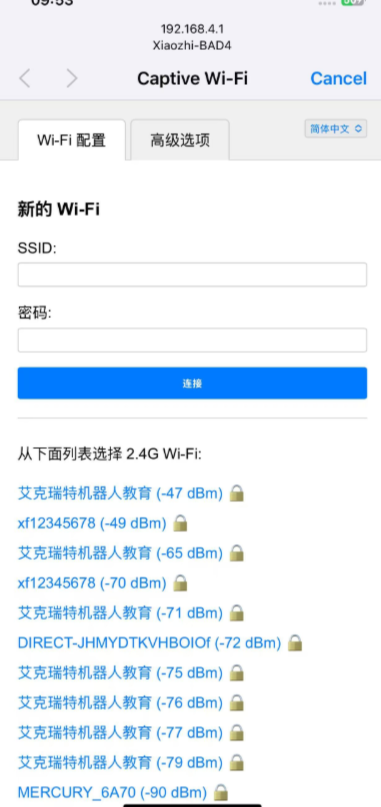
Your phone should automatically redirect to the network configuration page. |
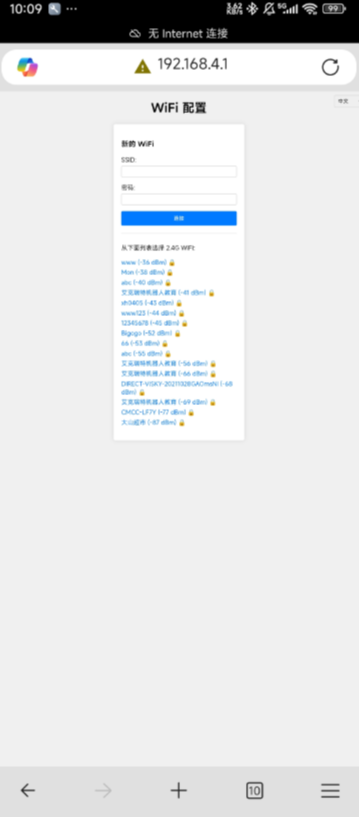
If your phone does not auto-redirect, open a browser and manually enter: |
|
|
● If you select the wifi name (SSID) from below, you only need to fill in the password. |
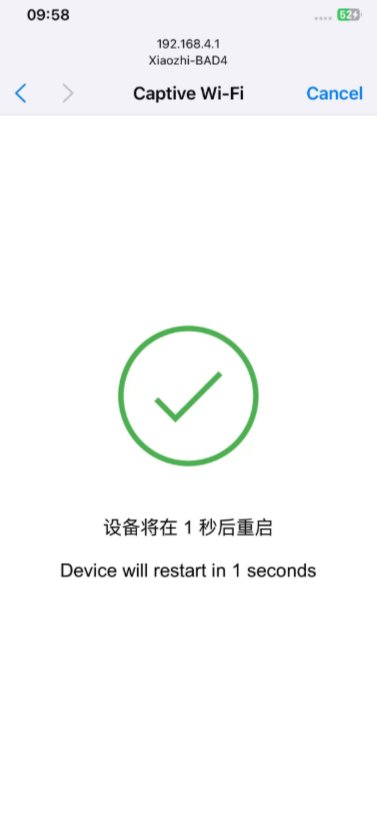
After clicking Connect, the connection is successful, please wait patiently for the device to reboot. |
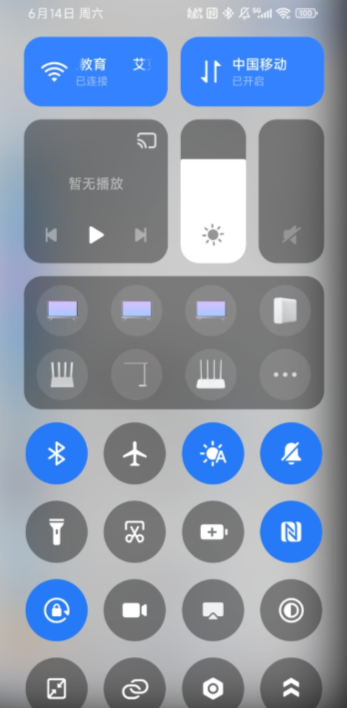
Note: If the device is already configured for a network, but you wish to clear the current network configuration in order to connect to another network, tap the left button three times in succession at any point after powering on the device
Register & Bind Device
|
|
|---|---|
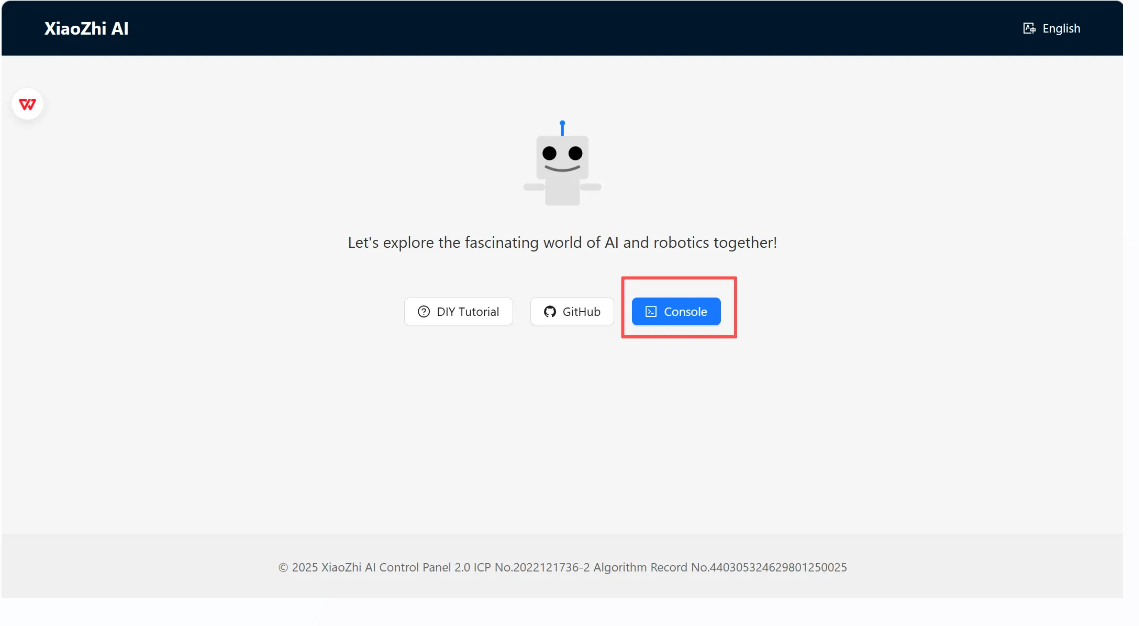
Open a browser and go to: |
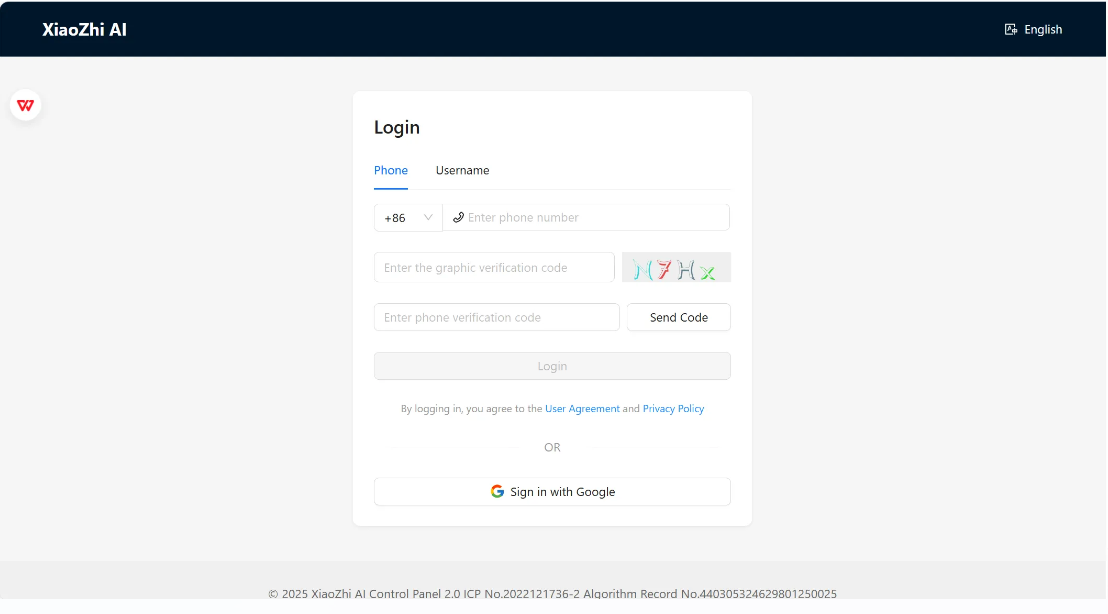
Register with your mobile phone number and verification code. |
|
|
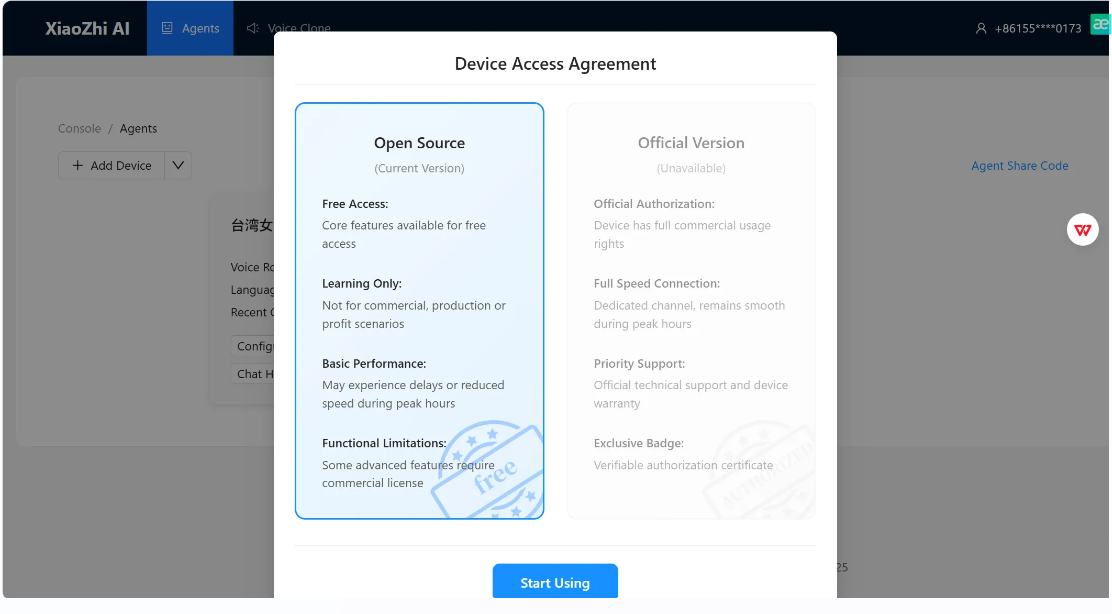
Select “Open Source Version” |
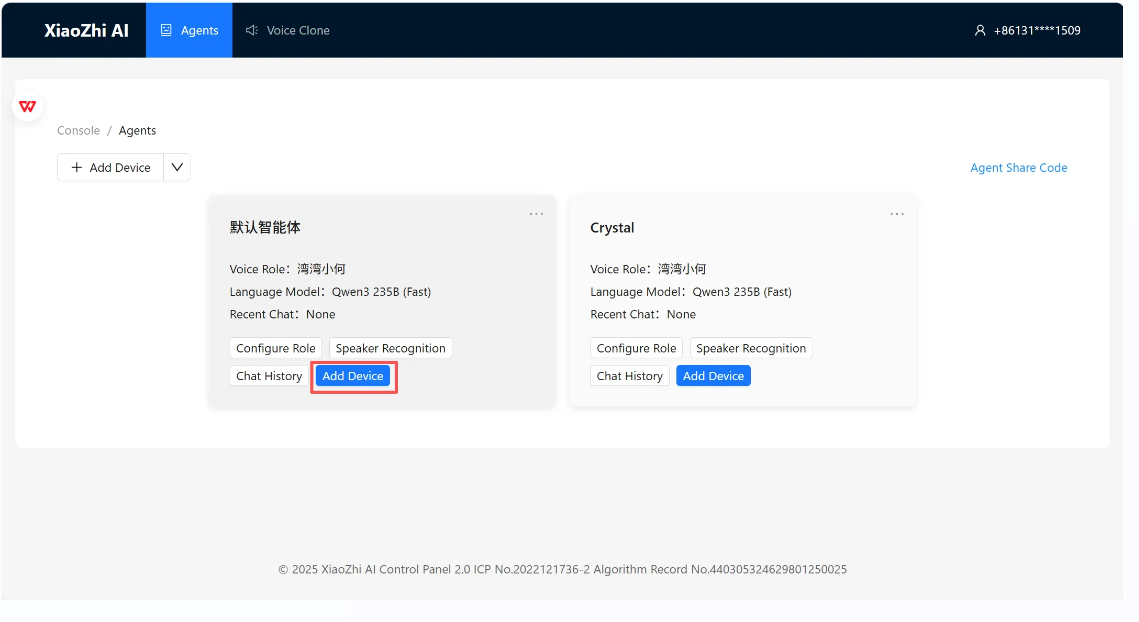
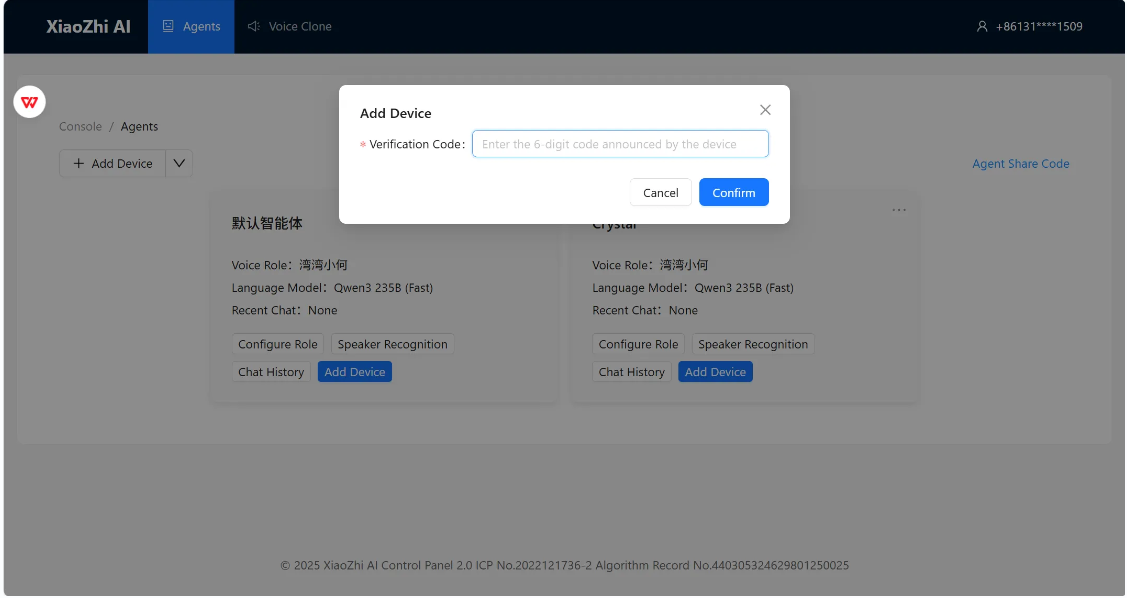
Click “Add Device” |
|
|
Enter the Device Code announced by the robot, then click Confirm. |
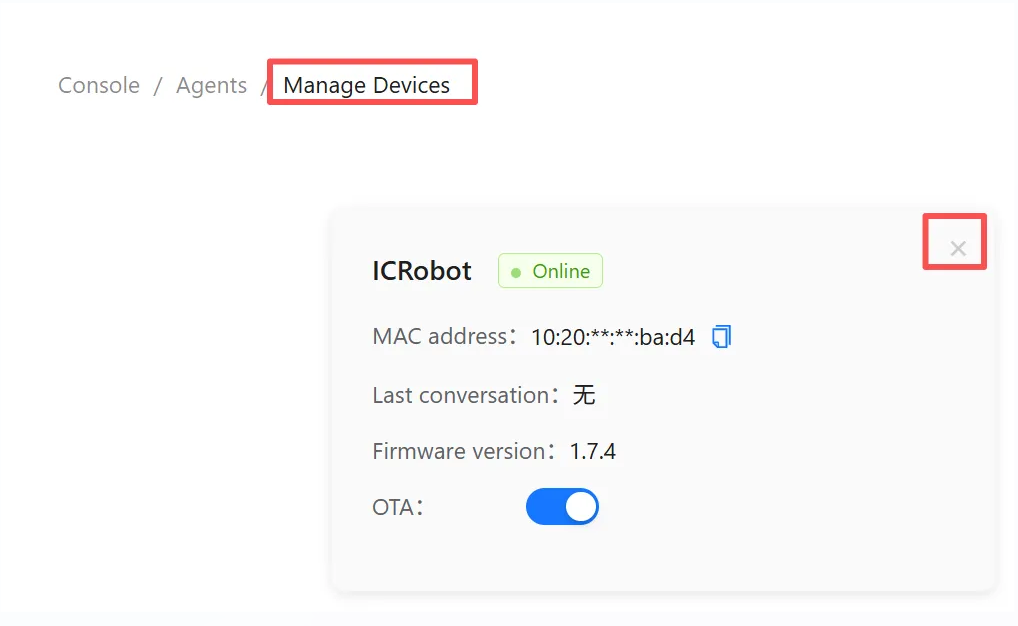
Once the confirmation screen appears, your XiaoZhi AI setup is complete. |