Downloading Built-in Example Programs
The robot can be connected to the computer via Serial Port, Bluetooth, STA, or AP mode. This guide uses the Serial Port connection as an example.
Required Tools
|
|
|
|
|---|---|---|---|
computer |
ICreateCode |
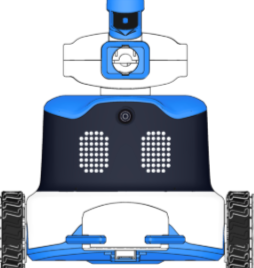
ICRobot |
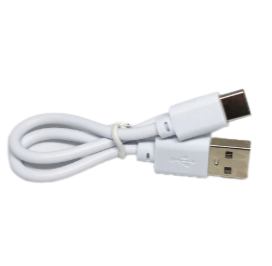
USB-C cable |
Procedure
|
|
|---|---|
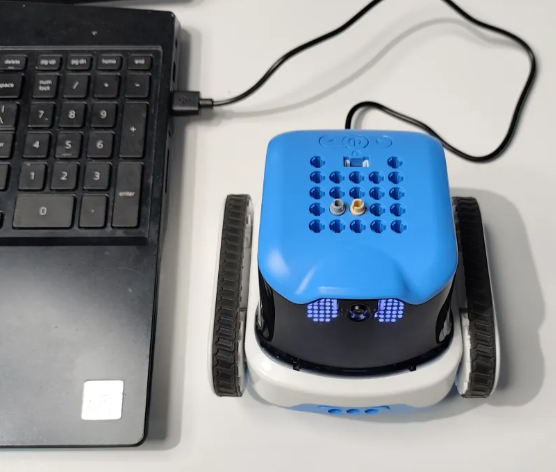
Step 1. After powering on the robot, connect it to the computer using a USB Type-C cable. |
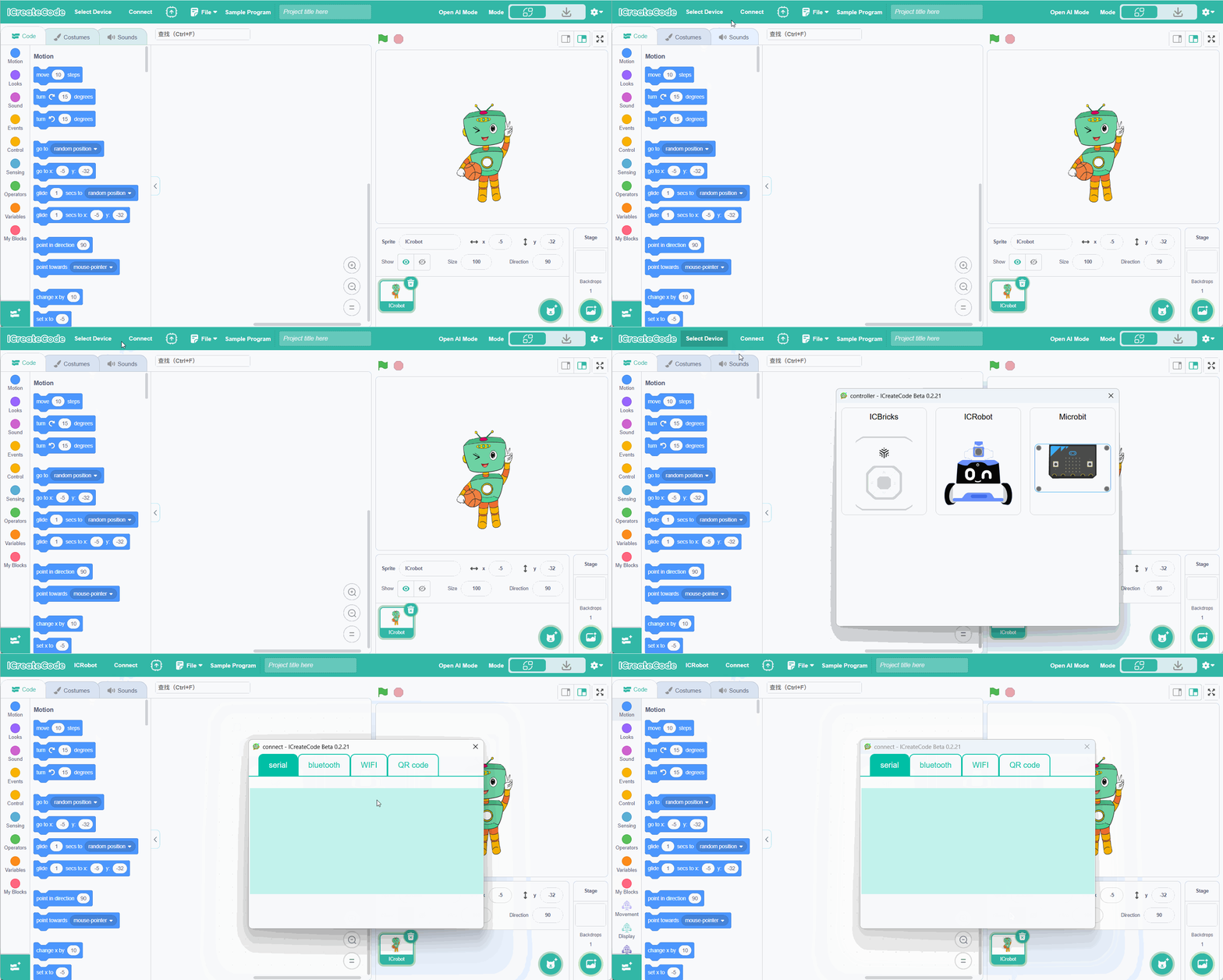
Step 2. Open the programming software on the computer, click “Select Device”, and then select ICRbot. |
|
|
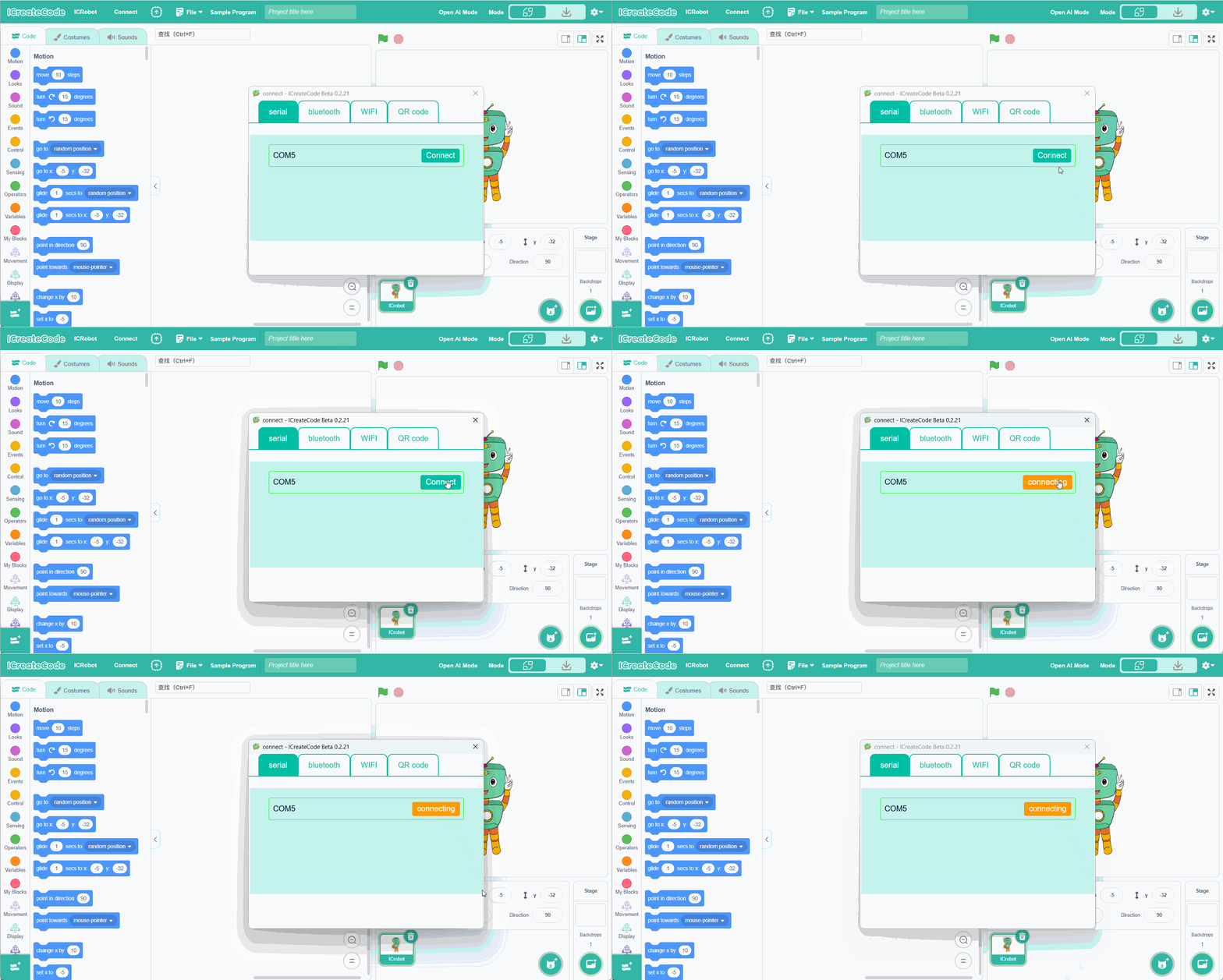
Step 3. In the “Serial Port” menu, select the correct port number, then click “Connect”. |
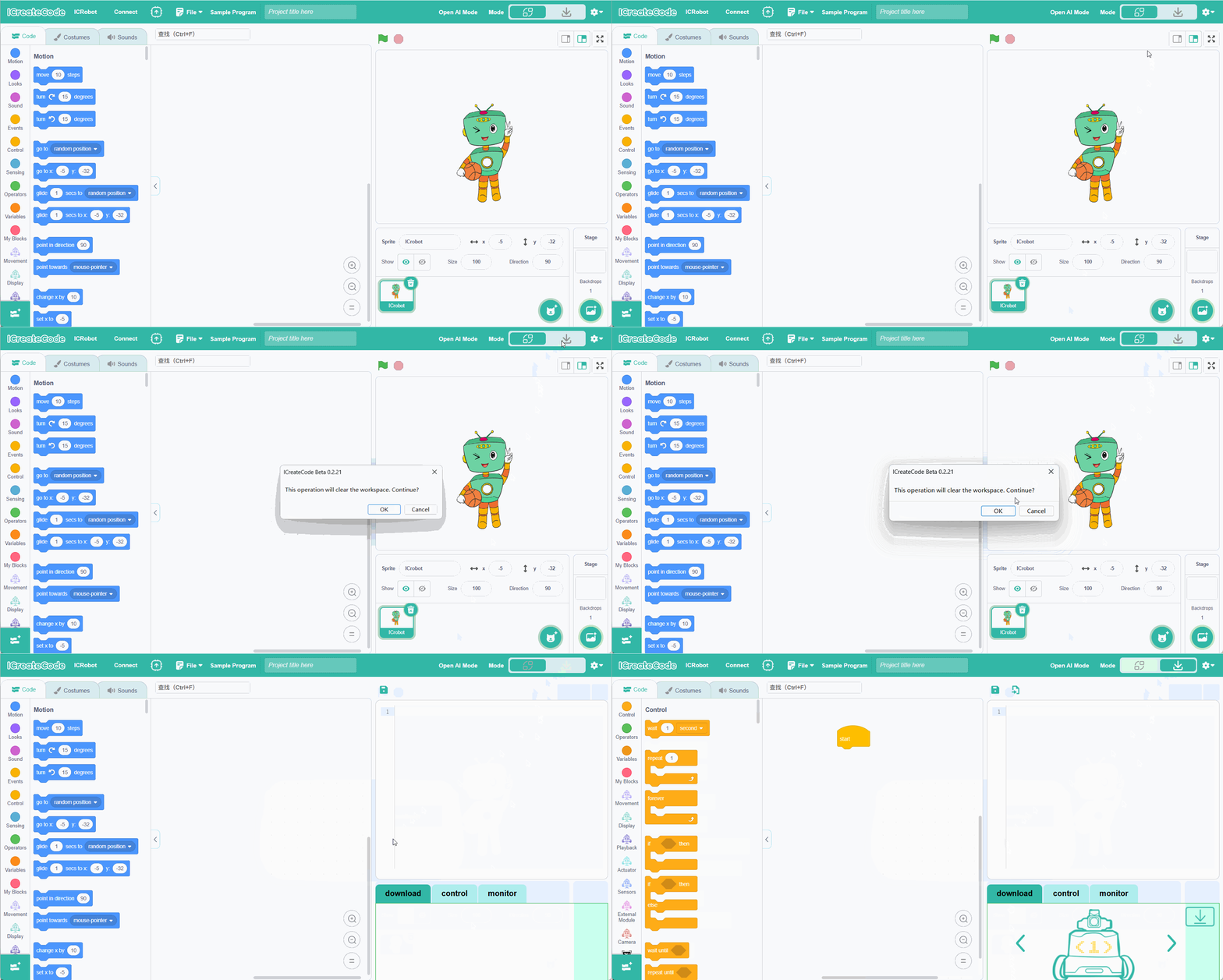
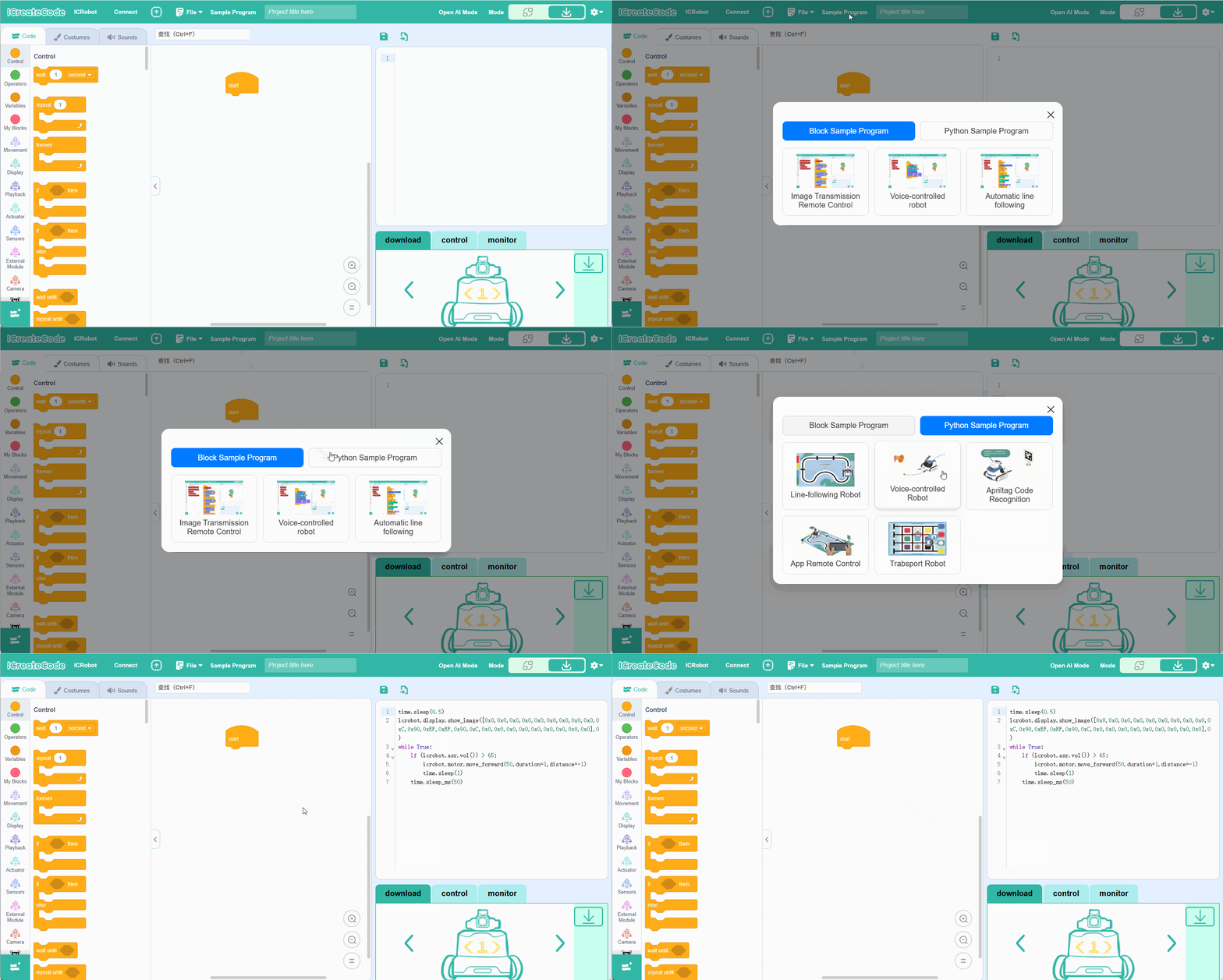
Step 4. Switch the programming software to Download Mode. |
|
|
Step 5. Open “Examples” and select Python Examples. Then select the built-in program you want to download. After selecting a program, its corresponding |
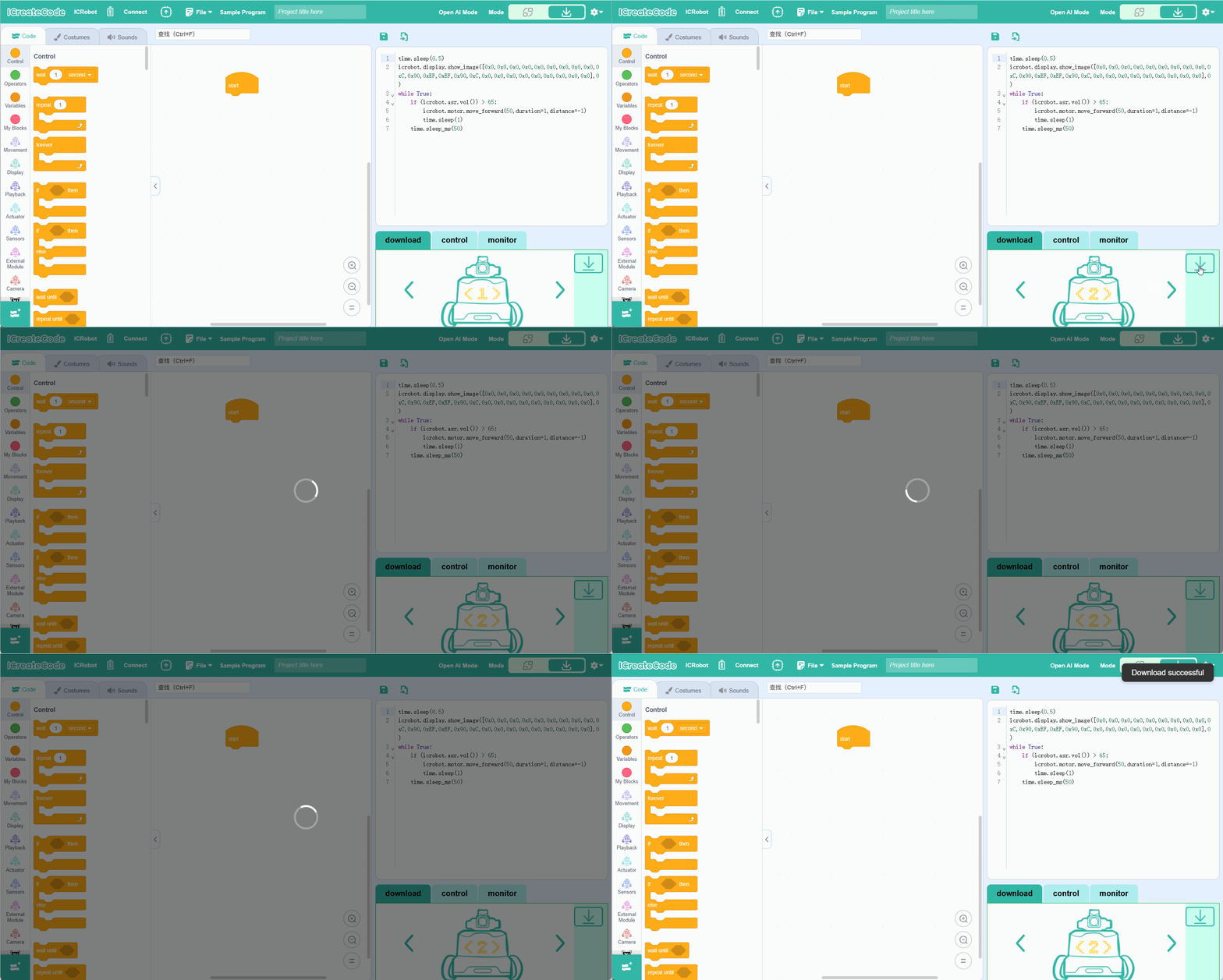
Step 6. Download the program. |