Access Point Mode (AP Mode)
Definition
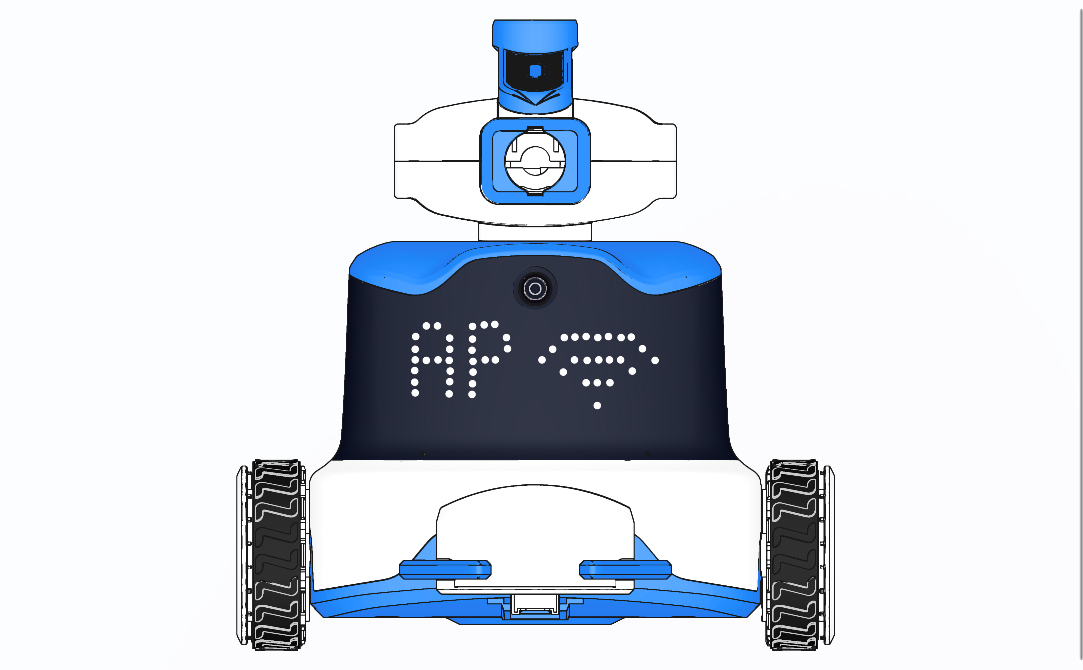
In AP Mode, the ICRobot acts as a wireless hotspot. The PC searches for and connects to the robot’s Wi-Fi signal to enable wireless communication.
Preparation
|
|
|
|---|---|---|
A computer |
ICreateCode software |
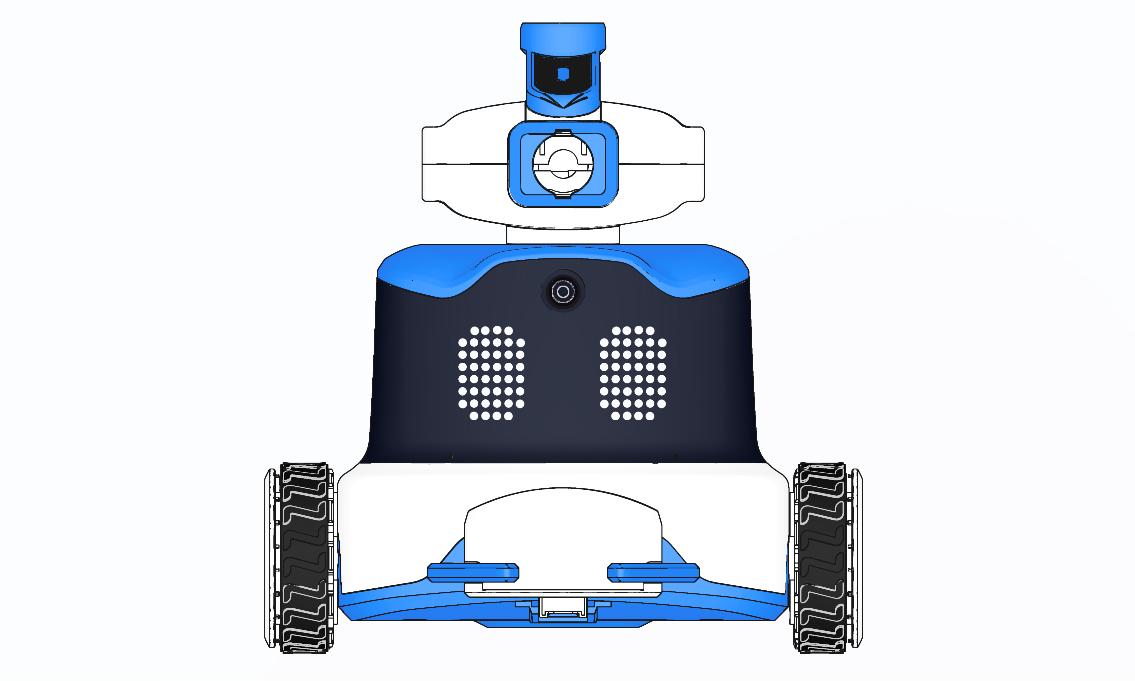
ICRobot |

Steps
|
|
|---|---|
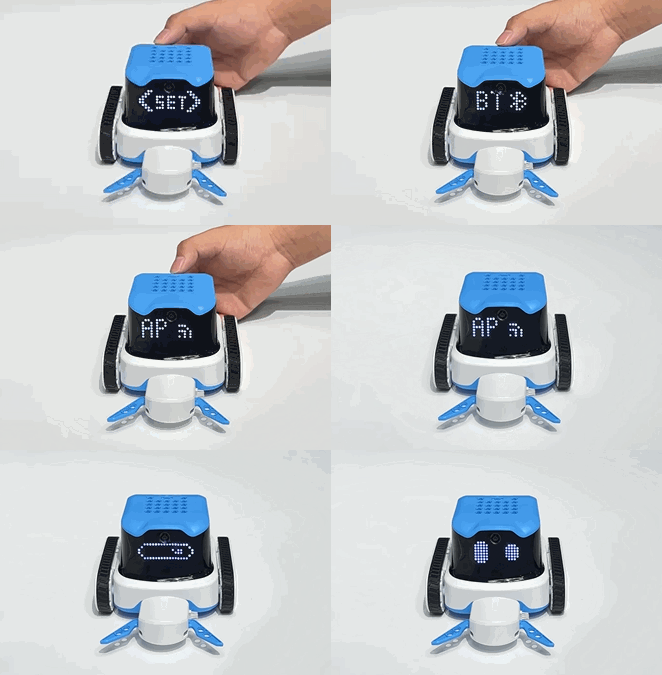
Step 1: Power on the ICRobot. After startup, press the left or right button to switch to SET Mode. |
Step 2: While in SET mode, press the left or right button to switch to AP Mode, then press the power button to confirm. |
|
|
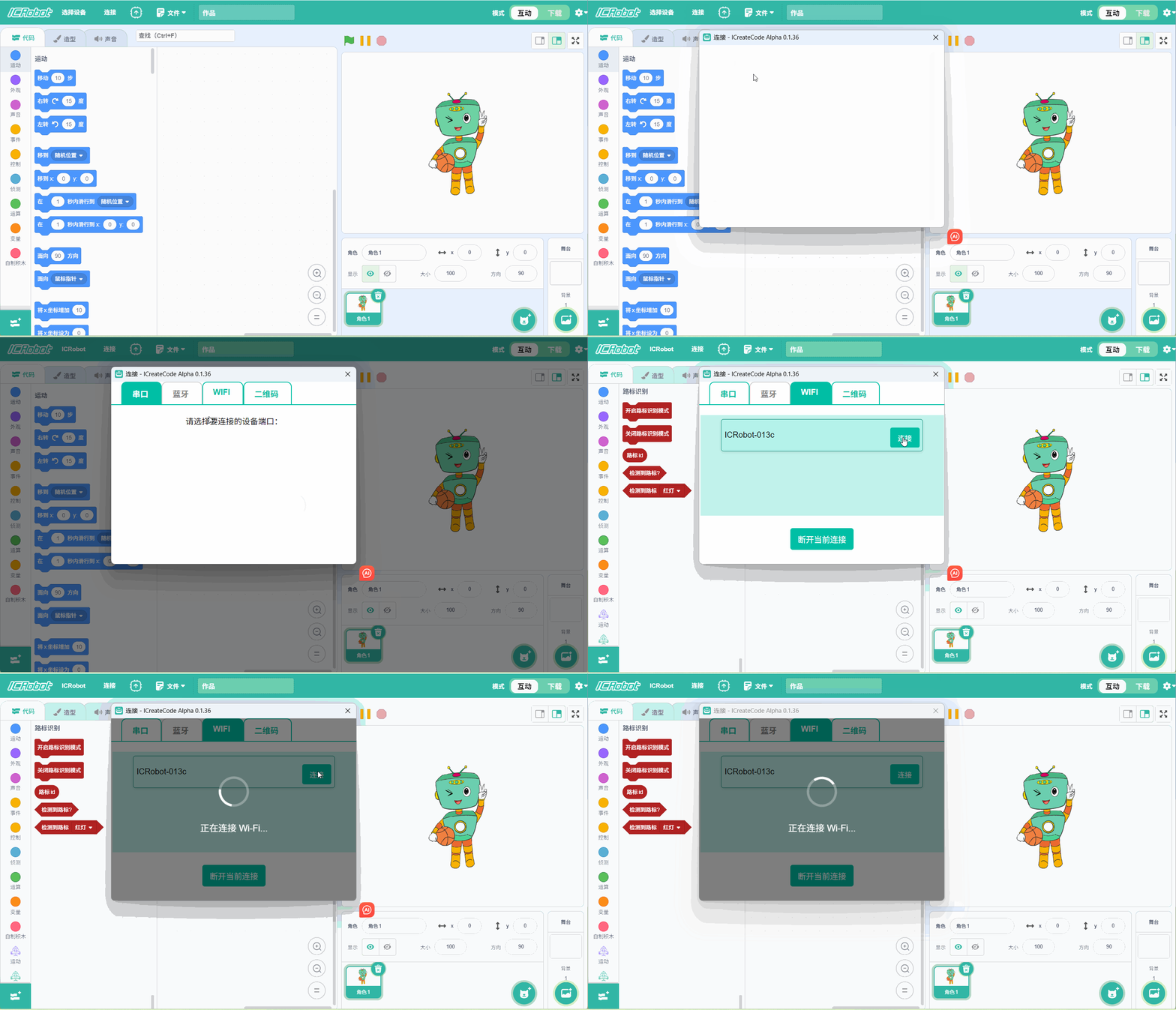
Step 3. Programming software interface, click Connect, select WIFI, select ICRobot device name (last four digits of MAC), click Connect. |
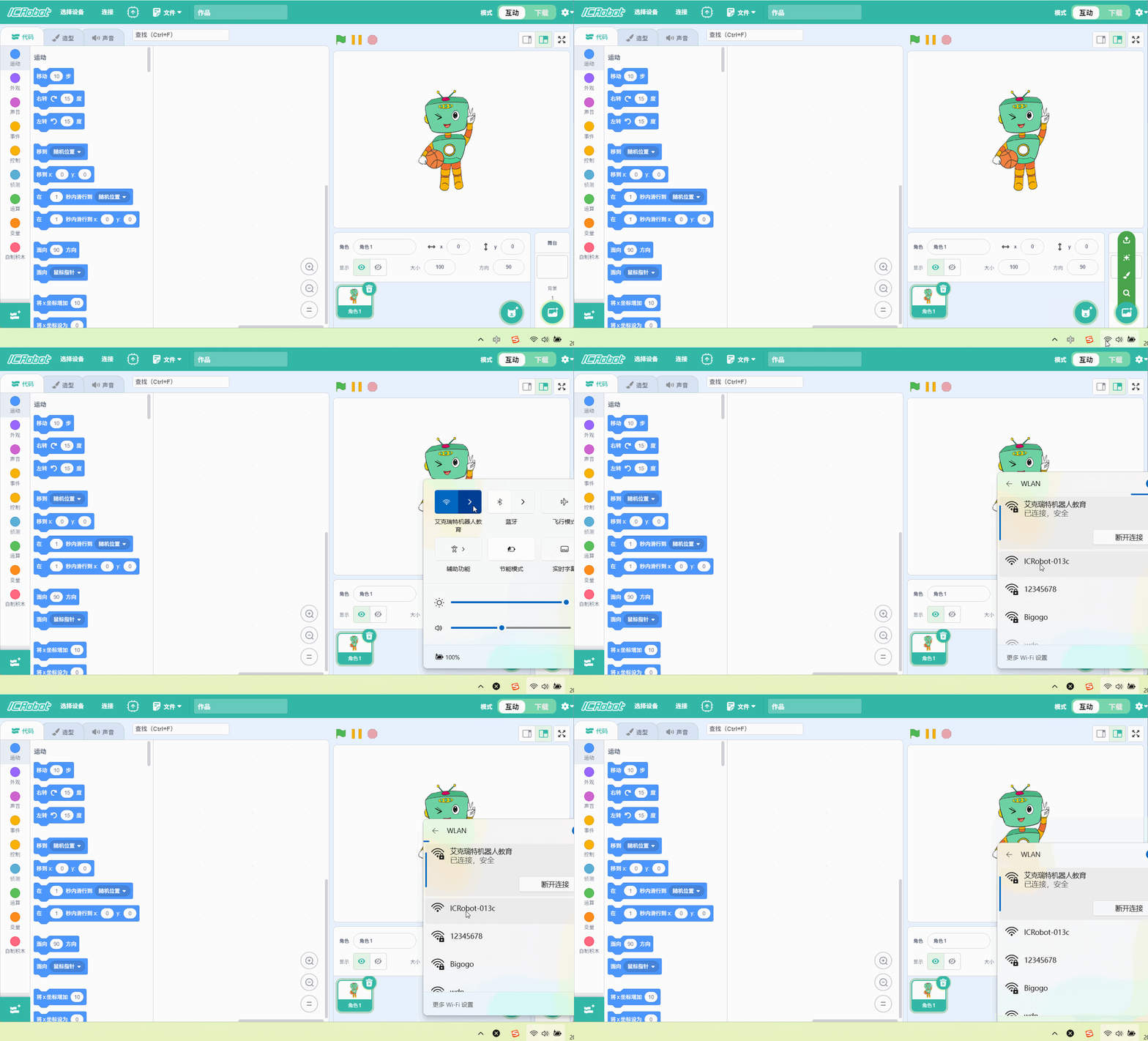
Step 4: If the device name is not refreshed in step 3, open WLAN on PC and refresh the device name (the device name is the last 4 digits of the MAC, |
|
|
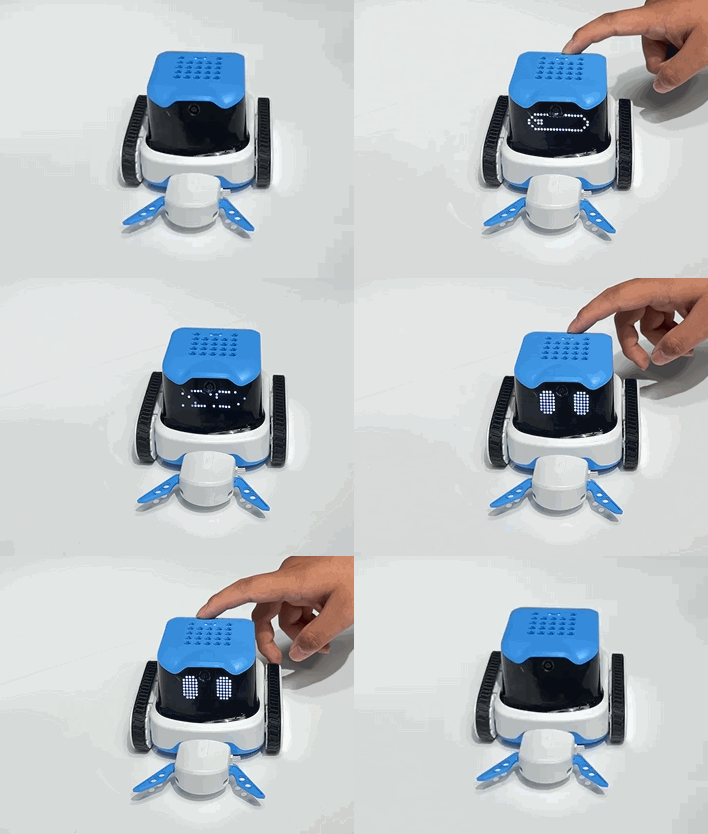
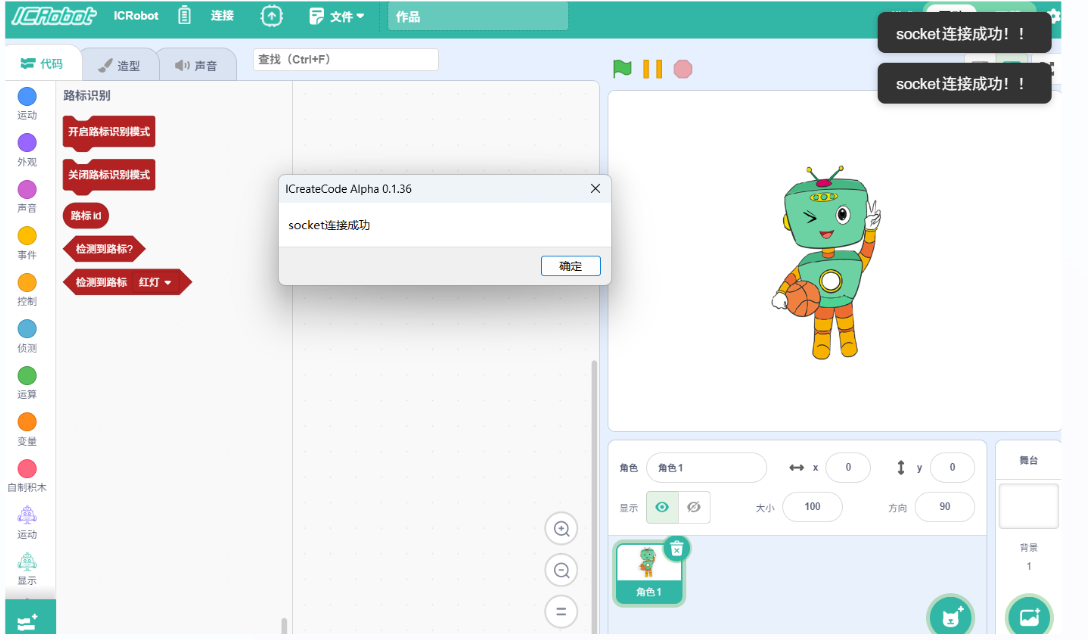
Step 5: The software prompts “socket connection is successful”, the ICRobot display switches to the interactive cat expression and the voice |

To Disconnect
If you wish to disconnect, simply click “Disconnect current device” in the connection box within the software.