Bluetooth Mode (BT Mode)
Definition
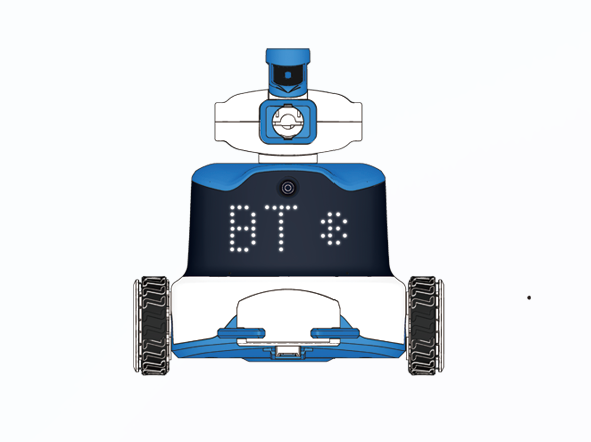
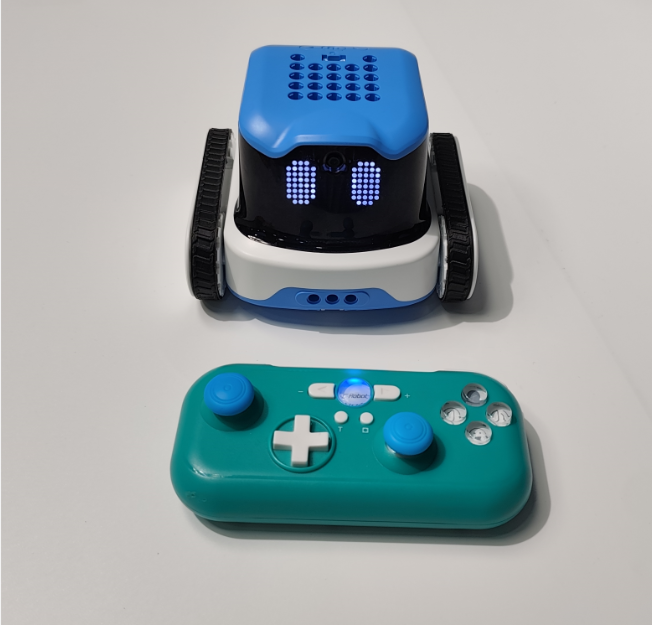
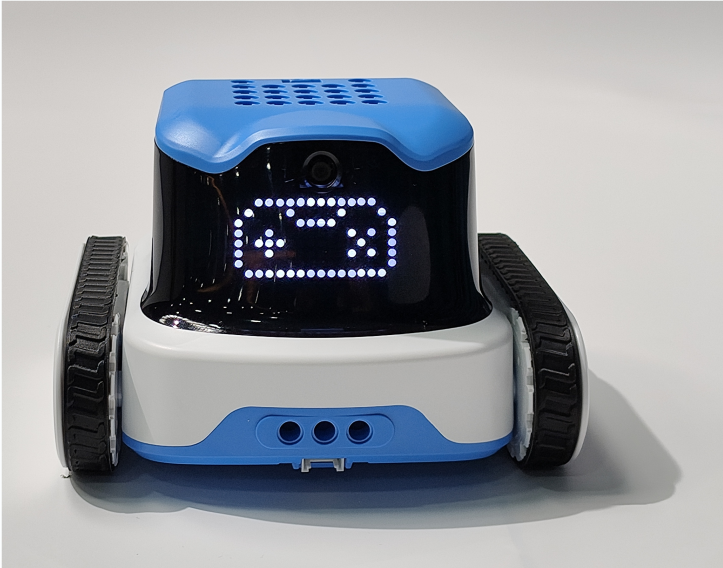
In BT Mode, the ICRobot connects via Bluetooth to either: the ICRemote app on a mobile device, or a Bluetooth game controller, enabling wireless interaction and remote operation.
Software Interaction
Preparation
|
|
|
|---|---|---|
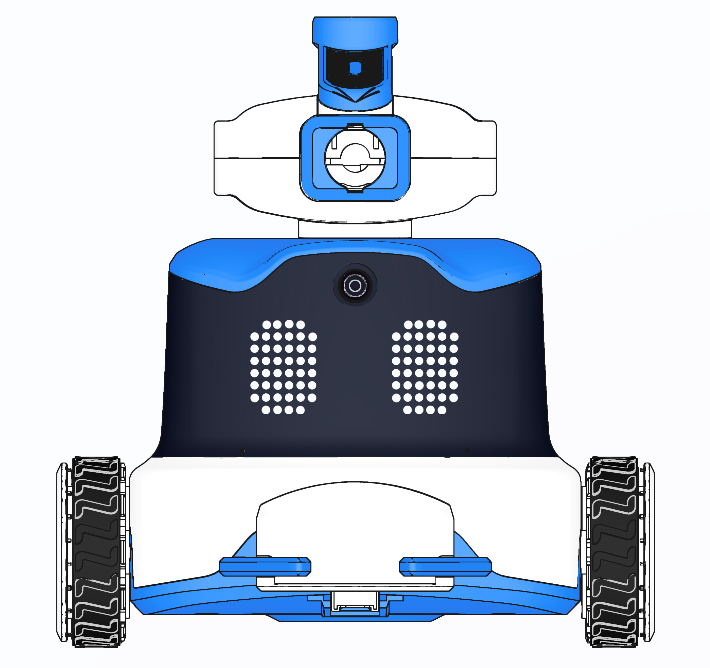
Android Mobile Device |
ICRobot |
ICRemote App |

Download the App
Scan the QR code or visit the ICreateRobot official website to download the installation package.
Steps
|
|
|---|---|
Step 1: Power on the ICRobot with the screen facing you. |
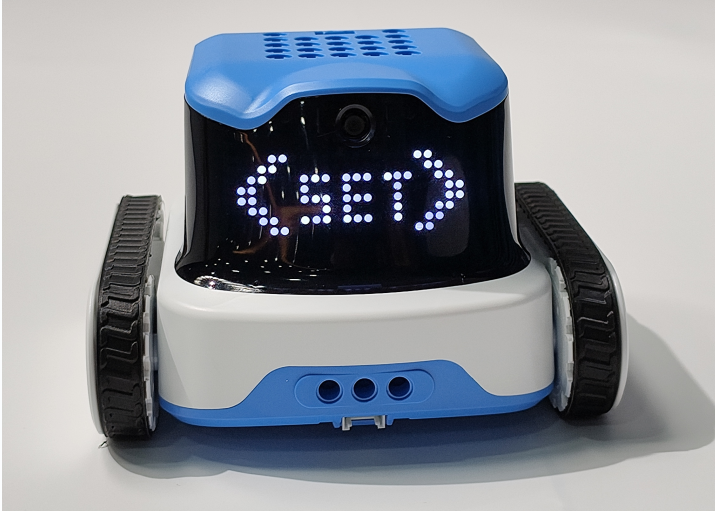
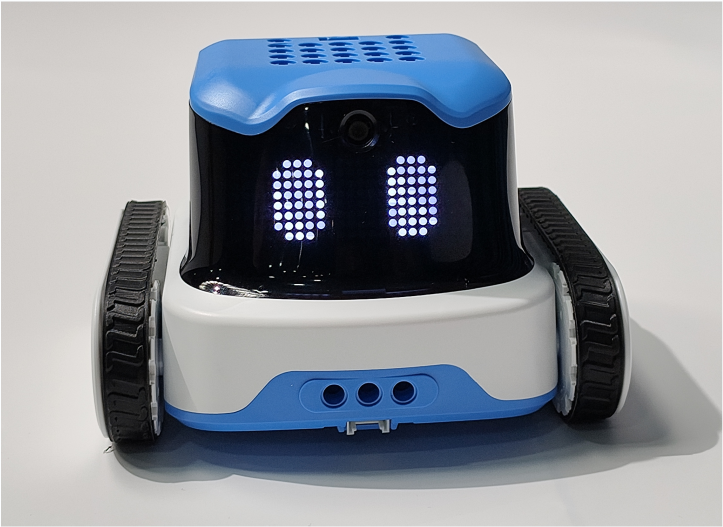
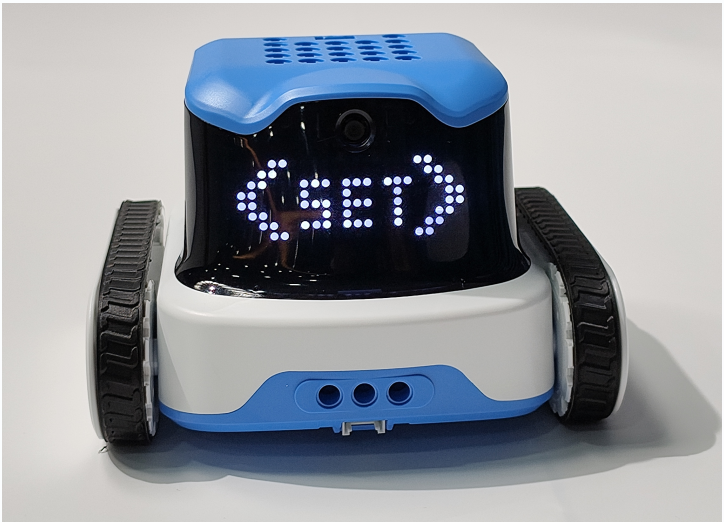
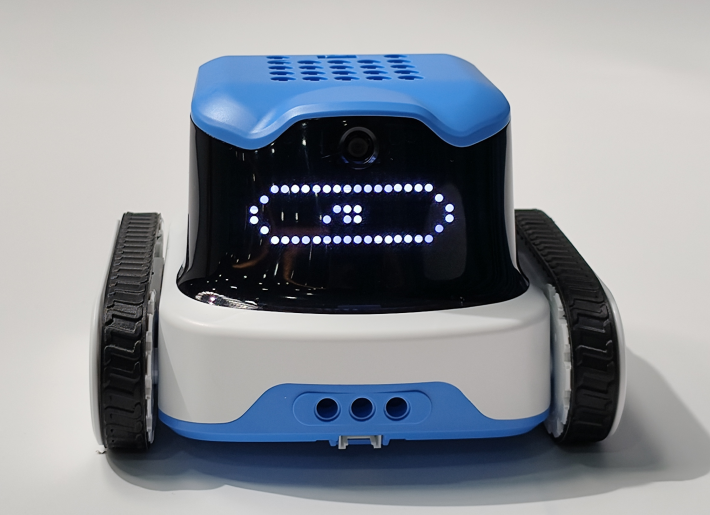
Step 2: Press the left button to display |
|
|
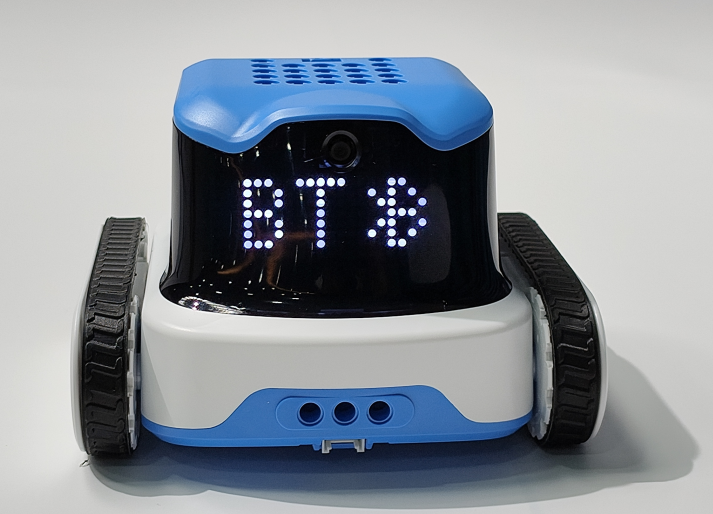
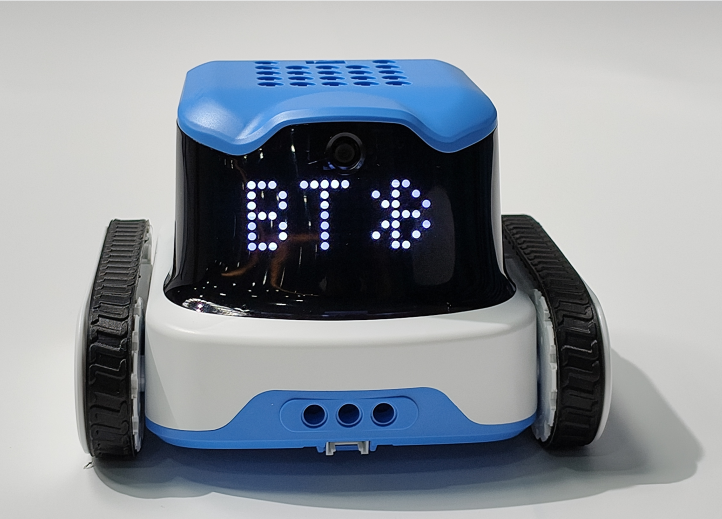
Step 3: Use the left/right buttons to scroll through connection modes. Select BT and press the middle button to confirm. |
Step 4: The robot will announce one of the following:“Switching to Bluetooth mode.”“Already in Bluetooth mode. No need to switch.” |
|
|
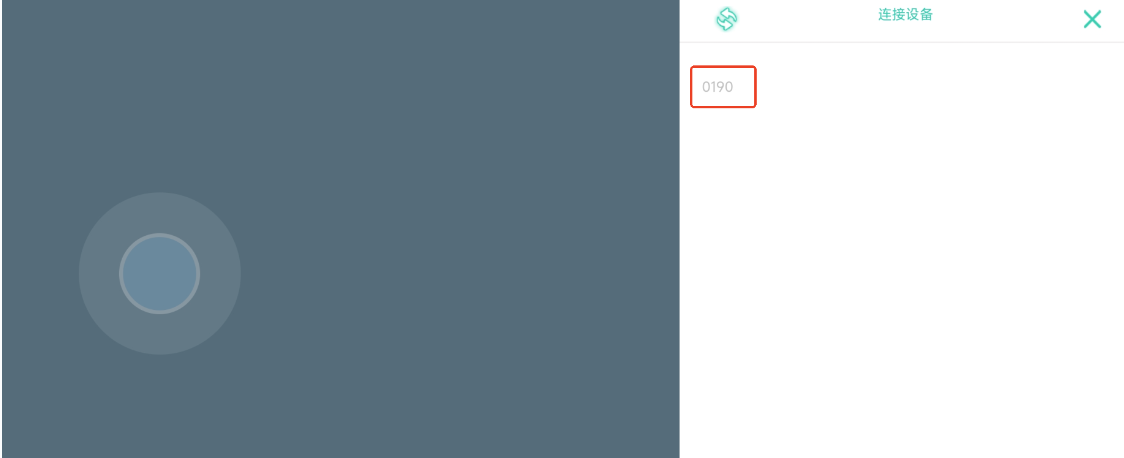
Step 5: Open the ICRemote app, tap the Bluetooth icon, and scan for devices. |
Step 6: Select the robot’s device name to initiate connection. |
|
|
Step 7: The robot will announce: “Bluetooth connected successfully.” or “Bluetooth connection failed.” |
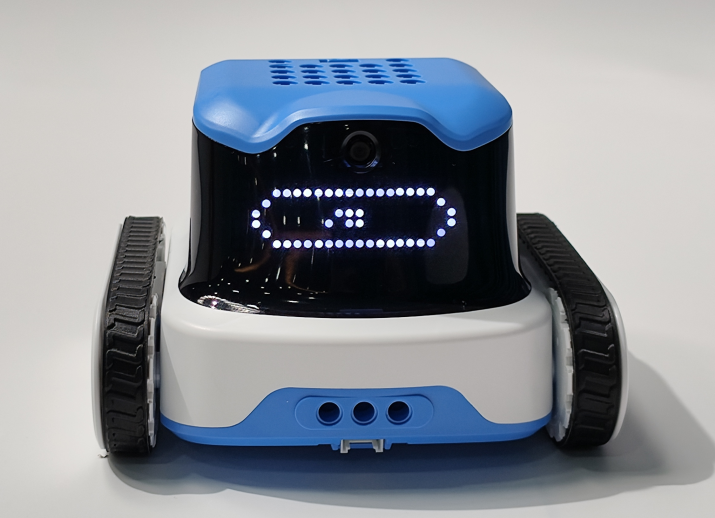
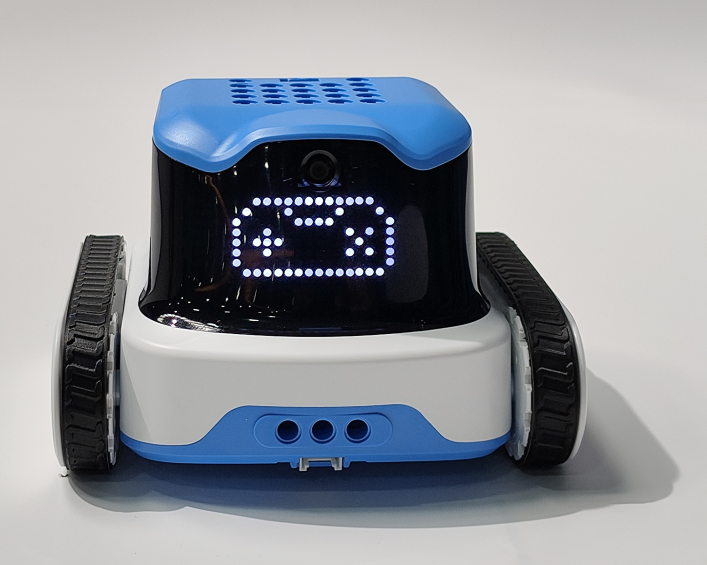
Step 8: Follow the program instruction to switch to Program 4. When the screen shows a gamepad icon, you can control the robot using the app. |


Bluetooth Gamepad Interaction
Preparation
|
|
|---|---|
ICRobot |
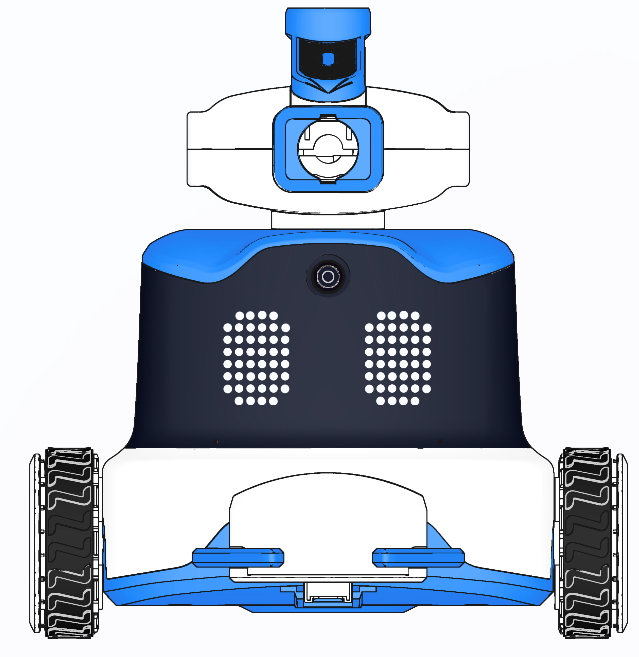
ICRobot Multifunctional |
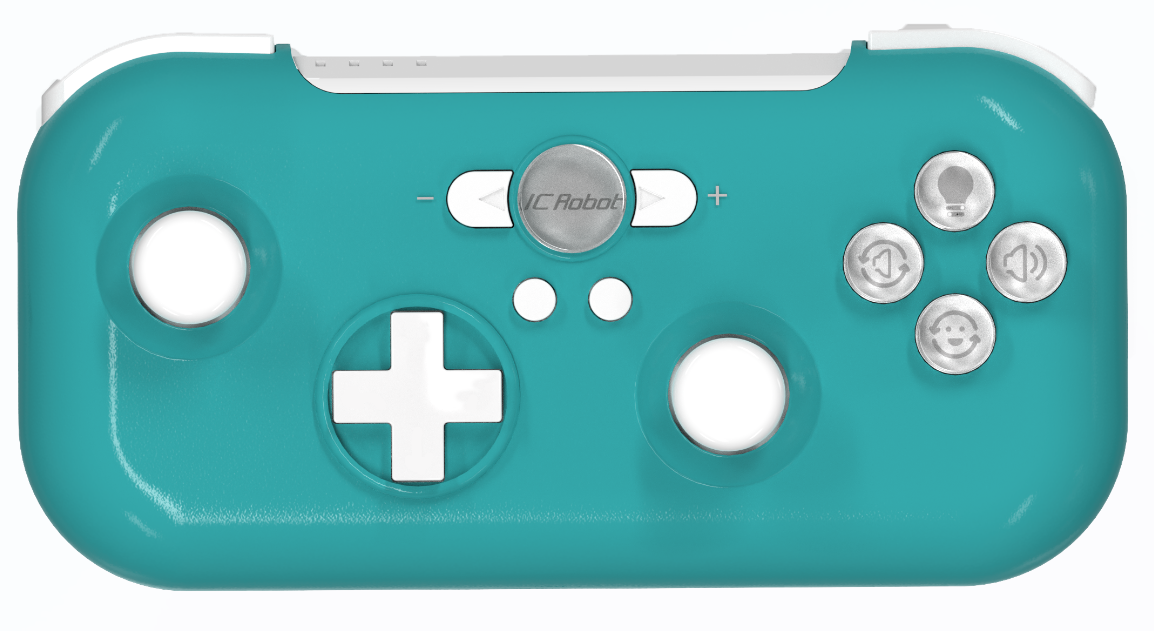
Steps
|
|
|---|---|
Step 1: Power on the ICRobot with the screen facing you. |
Step 2: Press the left button to show |
|
|
Step 3: Use the left/right buttons to select BT Mode, then press the middle button to confirm. |
Step 4: The robot will announce:“Switching to Bluetooth mode.”or “Already in Bluetooth mode. No need to switch.” |
|
|
Step 5. Refer to the handle connection operation instructions for Bluetooth device pairing operation. |
Step 6: Switch to Program 4. When the gamepad icon appears on the screen, you can control the robot with the Bluetooth gamepad. |