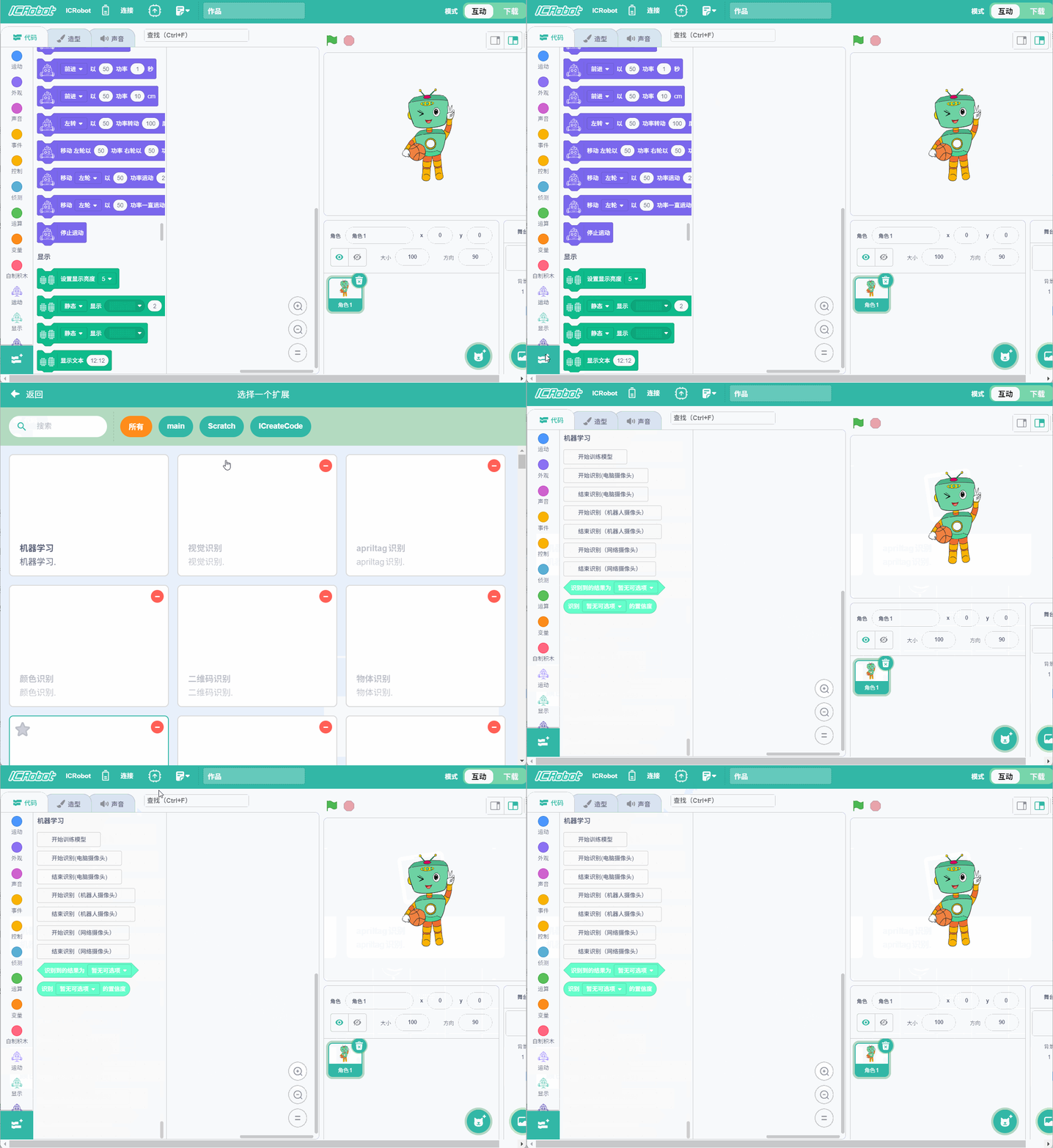
Machine Learning Blocks
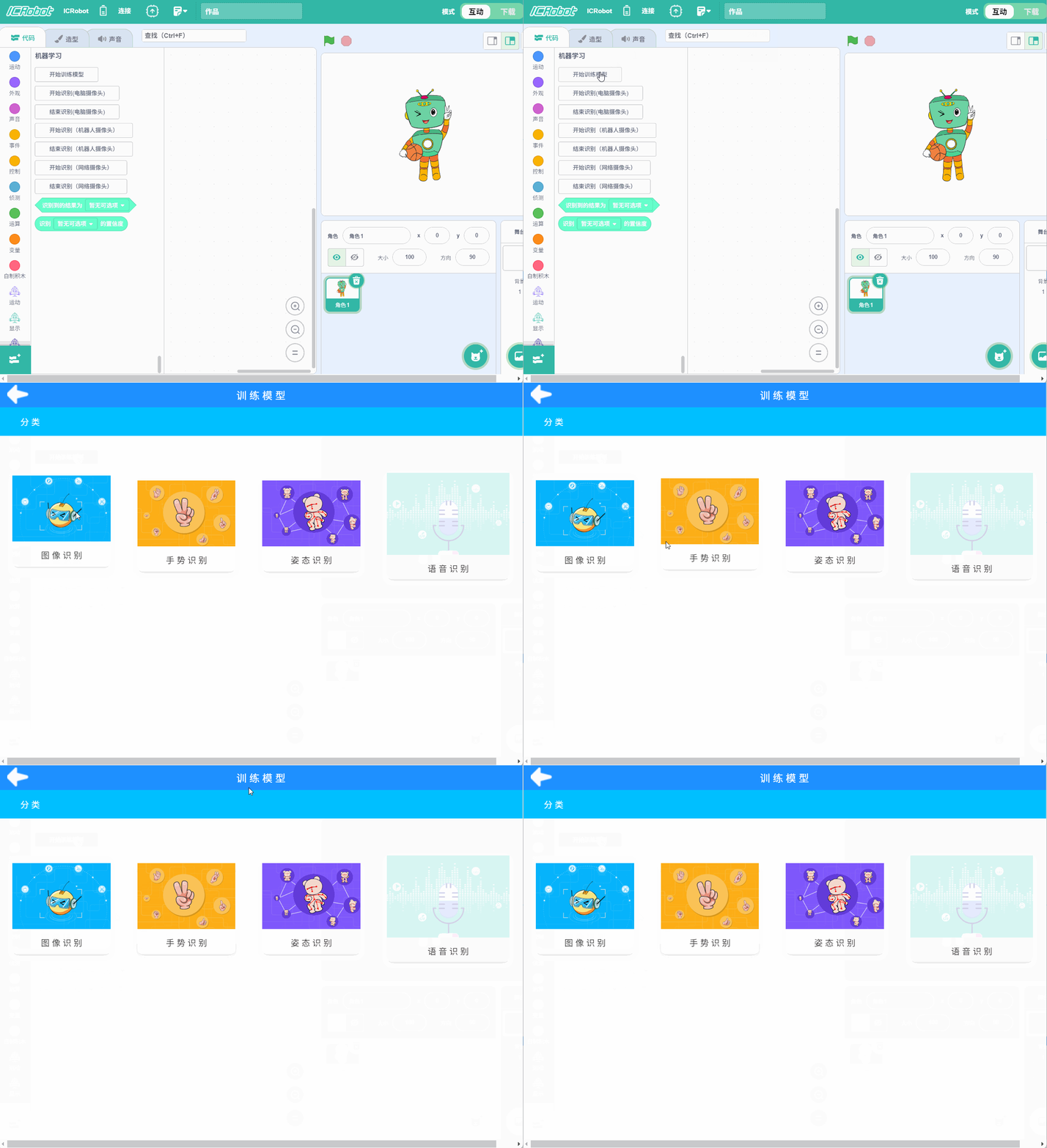
Start training model
Click to enter the machine learning interface.
Start recognition (computer camera)

Enable the computer’s camera to recognize using the trained model.
Start recognition (robot camera)

Turn on the robot’s camera and start recognition.
Stop Recognition
Stop recognition and turn off the robot camera and computer’s camera.
Start Recognition (Web Camera)

Enable an external network camera and start recognition.
Recognition result is ()

Check whether the recognized result matches the selected category.
Confidence of recognizing ()

Return the confidence score for the specified category.
Example
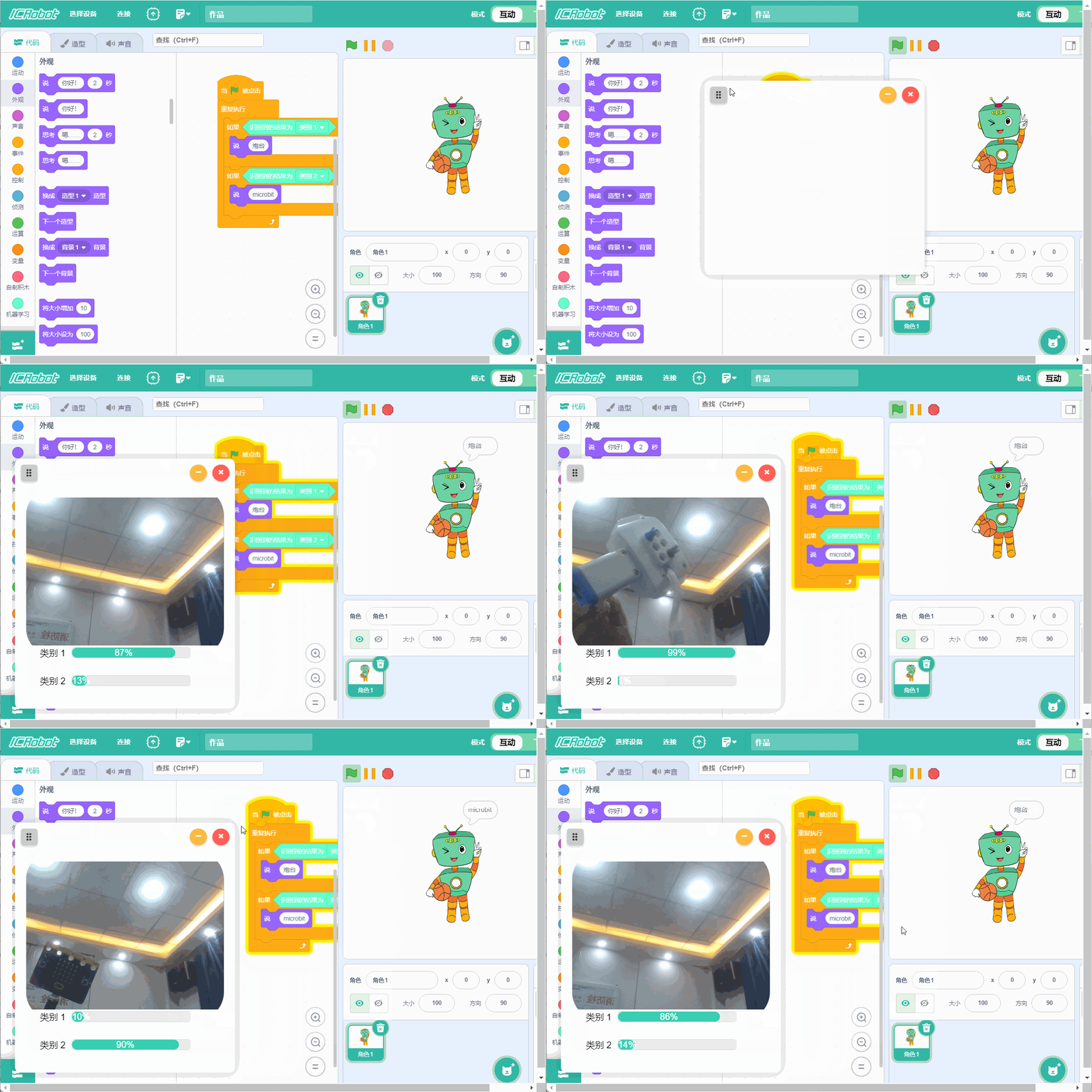
Train two machine learning models and use programming logic to make the character respond differently based on which model is successfully recognized.
Operation Steps
|
|
|---|---|
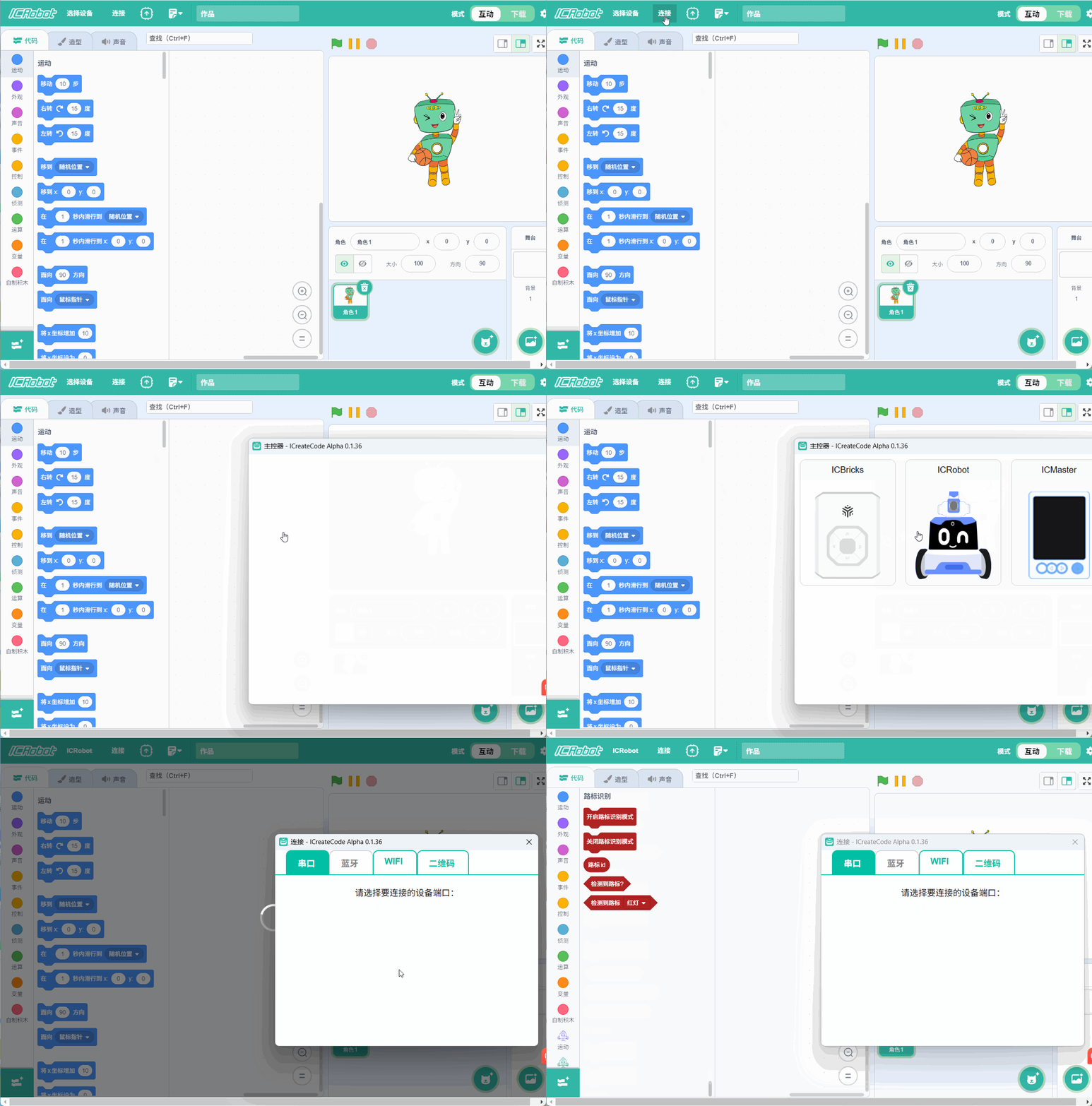
Step 1: Connect ICRobot to the programming software (refer to AP/STA connection method). |
Step 2: Add the Machine Learning Extension. |
|
|
Step 3: Click “Start Training Model” to select the training type: image recognition, gesture recognition, or pose recognition. |
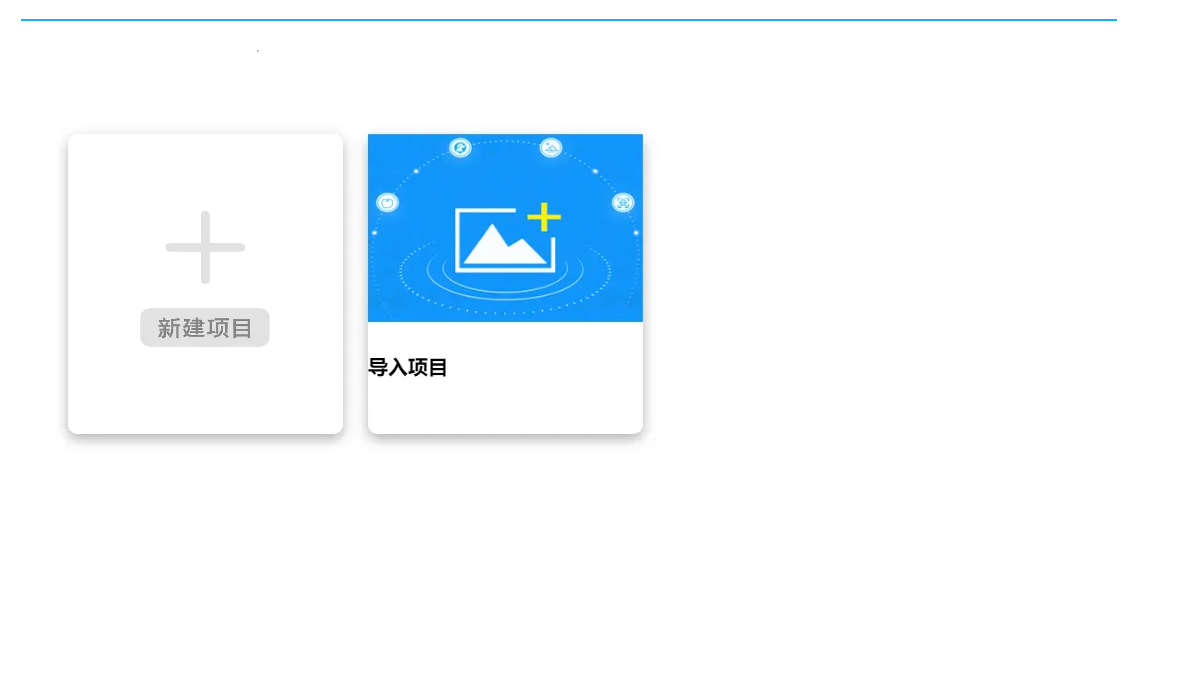
Step 4: Choose to Create a New Project or Import an Existing Project. |
|
|
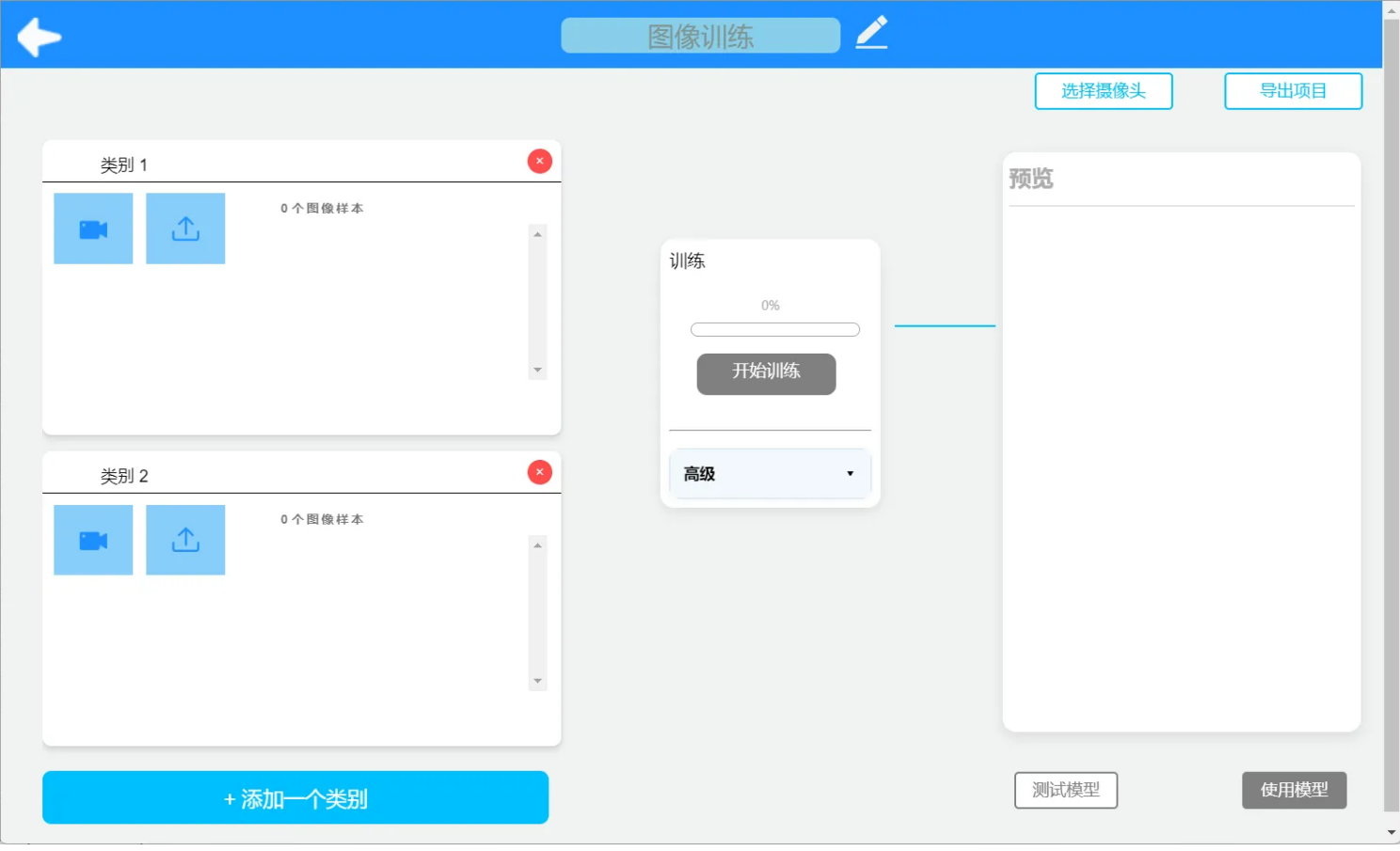
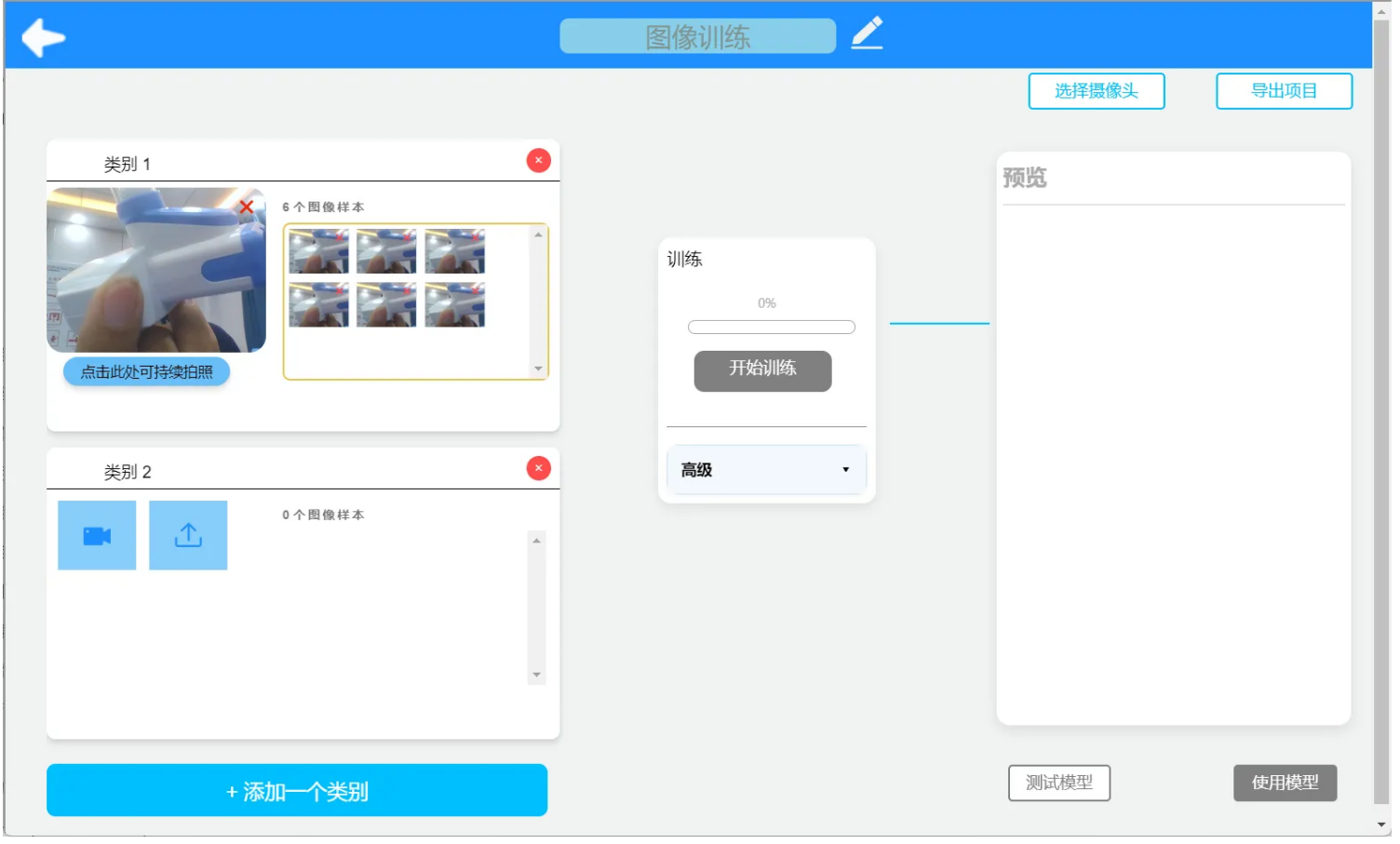
Step 5: Click the camera icon under each category to enable the corresponding camera. |
Step 6: Continuously capture training images using the camera. |
|
|
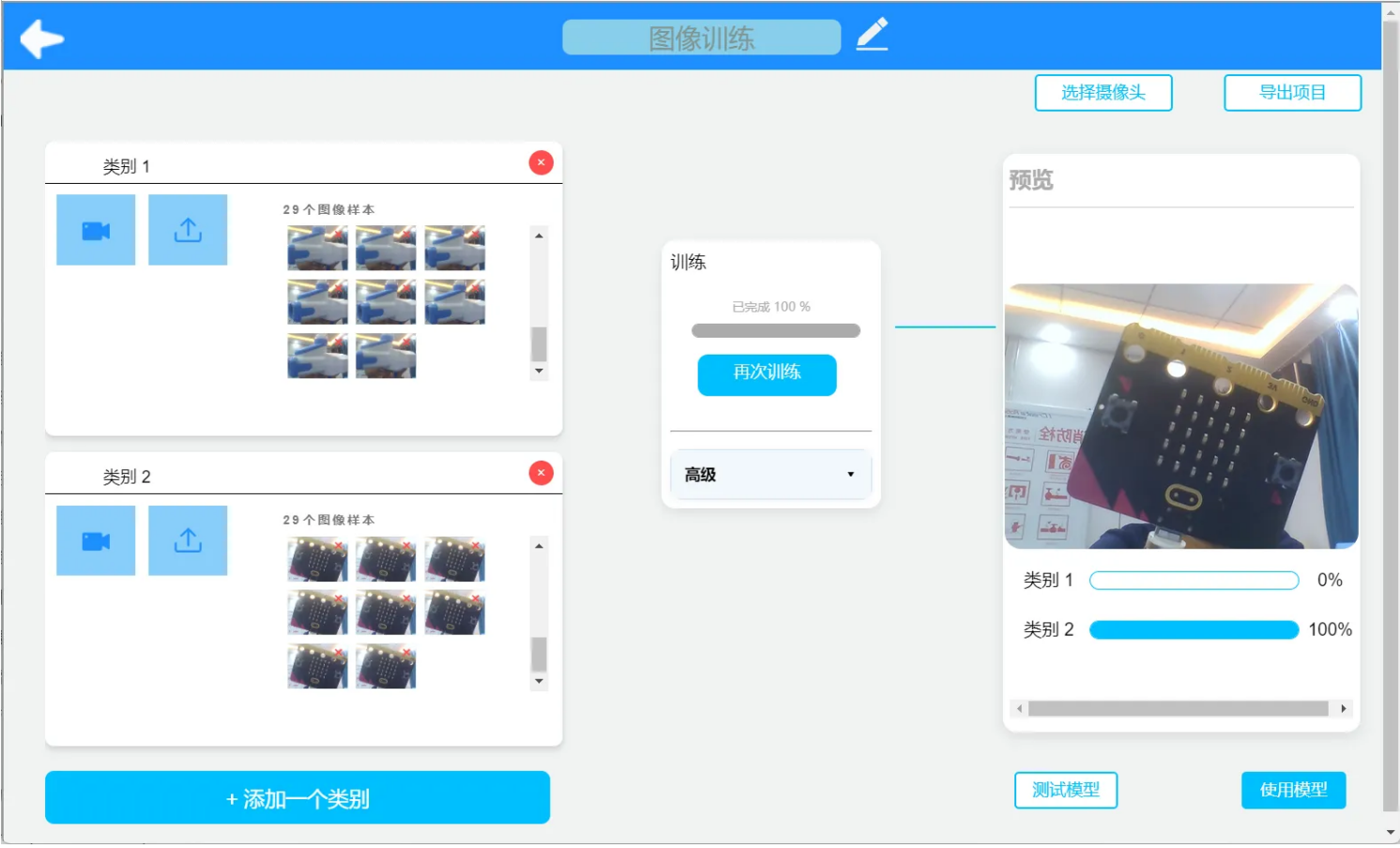
Step 7: Click the “Train Model” button to begin training. |
Demonstration